
Keycloak Migration Guide
What changes for you
Your enterprise Identity Provider (IdP) currently trusts the Highlight portal directly as a Service Provider (SP). After migration, it will trust Keycloak instead. Keycloak then handles the connection to your Highlight portal transparently.
You only need to update two things in your enterprise IdP:
- The SP Entity ID: becomes {serverUrl}/auth/realms/hl-portal as of October 3rd
- The ACS URL (Assertion Consumer Service URL): becomes {serverUrl}/kcauth as of October 10th
These values are provided directly on the Highlight SAML administration screen.
Step 1 – Retrieve the new SP configuration
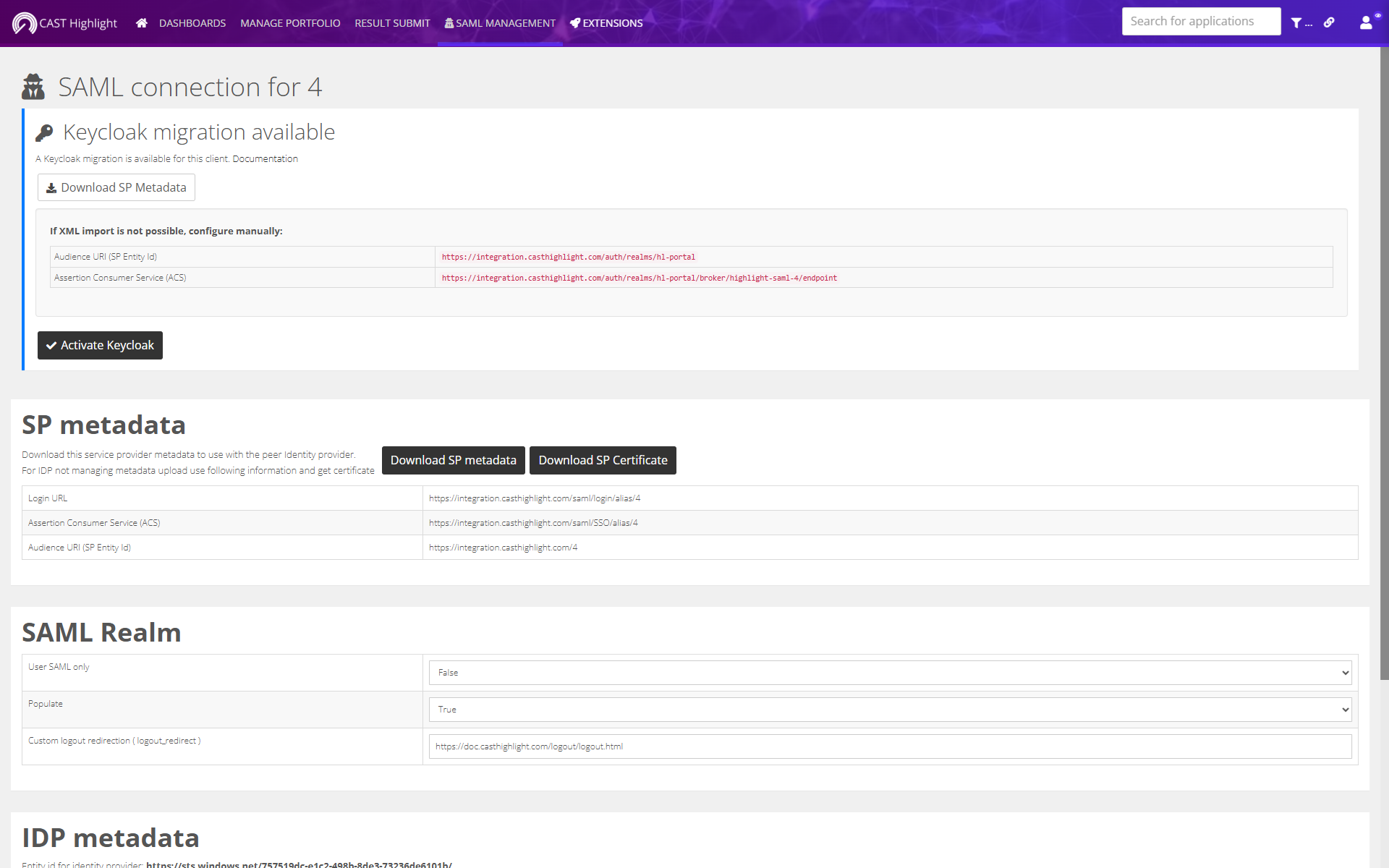
On the CAST Highlight SAML administration screen for your company, a migration section will appear once the migration is ready for your account.
Click “Download SP Metadata” to download the XML file containing the new SP configuration for Keycloak.
If your IdP does not support XML import, the two values to update manually are displayed directly on the screen:
- SP Entity ID: the new Keycloak entity identifier
- ACS URL: the new endpoint where your IDP should send SAML responses.
Step 2 – Update your enterprise IdP
Import the downloaded XML file into your enterprise IDP, or manually update the SP Entity ID and ACS URL with the values shown on screen.
Important: Do not remove the existing SP configuration until Step 3 is complete and the connection has been validated. We also strongly recommend to create and use a local account (non-SAML user) to perform these operations.
Step 3 – Activate the new configuration
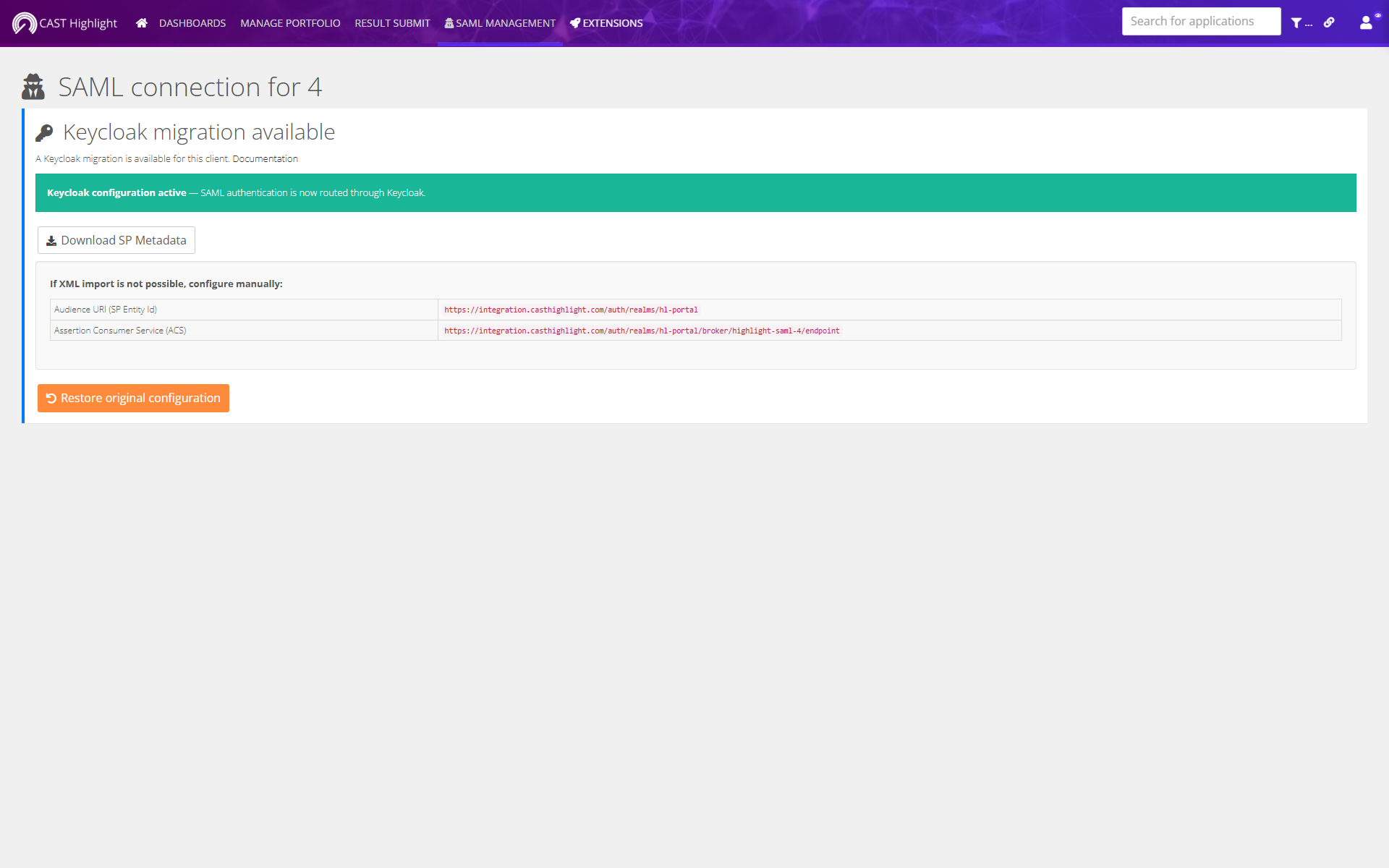
Once your enterprise IdP has been updated, return to the CAST Highlight SAML administration screen and click “Activate Keycloak”.
This will:
- Switch your Highlight configuration to use Keycloak as the IdP
- Keep a backup of the previous configuration.
Validation: Test a login after activation to confirm the connection works end-to-end.
Rollback procedure – Restore the previous configuration
If you experience issues after activation, you can revert to the previous configuration at any time by clicking “Restore original configuration” on the SAML administration screen. This will immediately restore the original SP configuration.
If the restore button does not resolve the issue, contact the CAST support team.
Important – Migration deadline
This migration must be completed before the new portal release date which will happen on October 10th 2026.
Accounts that have not completed the migration before the release date will lose SAML access until their enterprise IdP is reconfigured manually.
Known issues
- PingFederate: the response signature must be done, see https://support.pingidentity.com/s/article/Destination-Attribute-not-included-in-the-SAML-Response