
Our service provider certificate will be expired soon (October 2025). After this date, SAML connections will be refused with a 401 error. This document describes steps to update your idP configuration in order to switch to the new certificate. This operation must be done at any time before this date.
- An access to CAST Highlight Portal with a Portfolio Manager role account (SAML connection)
- A management access to the company idP configuration for the CAST Highlight application
- A second access to CAST Highlight portal with any user role to validate the new configuration (SAML connection)
- Optional: An additional CAST Highlight “credential” user account with a Portfolio Manager role. This additional user account is a security to allow reverting to previous CAST Highlight configuration in case the SAML authentication is not working after the operation. It can be a temporary CAST Highlight Portfolio Manager account, only valid for the the time of the operation and can be removed afterward.
The platform will display information on portfolio manager connection.
Bottom of screen for 30 second.

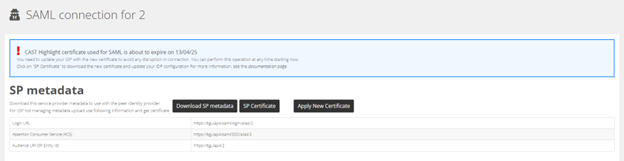
- Connect with a PM user (preferably with a “Credential” user account).
- Get to SAML configuration page
- Keep the connection opened until full end of the process (Important! If user is SAML).
- Download the new certificate with the button SP Certificate.
=> sp_highlight_certificate.pem file - Get on your IDP and change your configuration for Highlight Application to replace old certificate by new one.
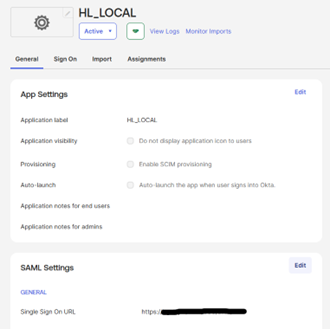
Edit SAML Settings
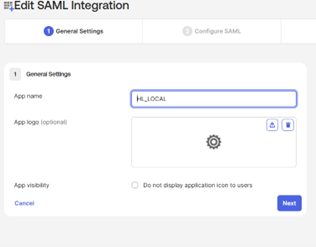
No modification on this go to Next
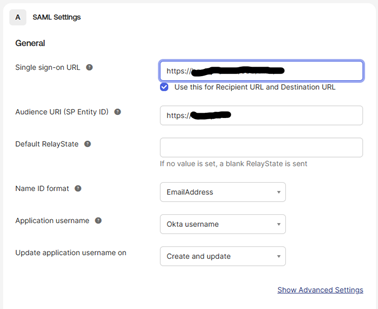
Click on “Show Advanced Settings”
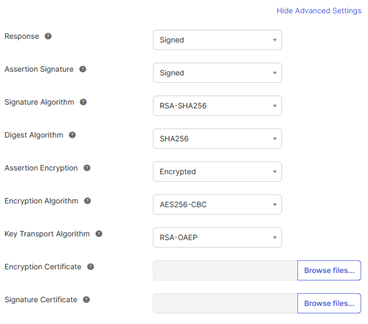
- Keep all parameter unchanged
- Upload the new certification for both Encryption/Signature
- Get to end of page and do next & finish to save


After the process completes, you should see:

Check if everyting is working as expected
Use a second machine and try to connect with a SAML user (ensure that no pre-existing connection is present) If you are correctly connected, the operation is considered as complete.
Are you running into an issue?
Don’t hesitate to contact CAST’s support. You may revert to the old configuration with a Portfolio Manager using credential.