

CAST Highlight supports SAML 2.0 which enables user authentication & role management from your Identity Provider (IdP).
To implement CAST Highlight’s user authentication using your SAML/SSO solution, you’ll need to have an active CAST Highlight user account with root-level access with a Portfolio Manager role and follow the documentation and steps described below.
Note: Your company already used SAML with CAST Highlight before October 2026? Your IdP configuration must be updated: see “SAML configurations created before October 2026” at the end of this page.
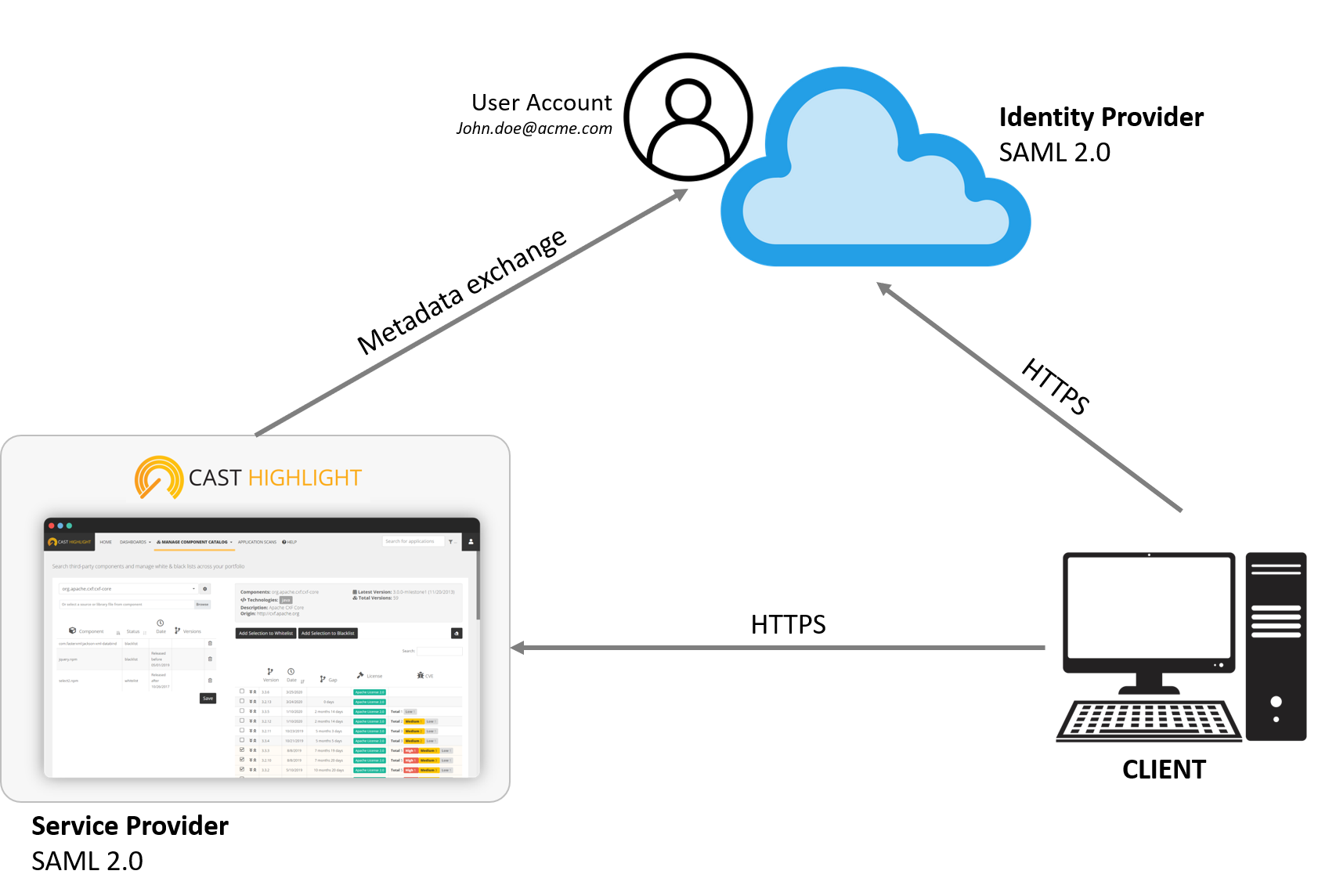
SAML Setup with CAST Highlight
- As a Portfolio Manager of the CAST Highlight instance (root-level domain), go to COMPANIES > SAML Management. The page displays, from the start, the Service Provider information your IdP needs:
- as a file (recommended): click Download SP metadata. This file contains all the information, including the SP certificate,
- or for a manual configuration, when your IdP cannot import the SP metadata file: copy the Assertion Consumer Service (ACS), the Audience URI (SP Entity ID) and the SSO Login URL (see Required information below), and click SP Certificate to download the certificate.
- Send this information to your IdP administrator. With it, they create the entry (application) for CAST Highlight in your IdP, either by importing the SP metadata file or by entering the values manually.
- Once this entry is created, your IdP administrator exports the IdP metadata file of this entry and sends it back to you.
- Back in COMPANIES > SAML Management:
- Select the desired option for authorized user types for the company:
- User SAML only = False, to allow Portfolio Managers to invite both SAML and Credential users
- User SAML only = True, to allow Portfolio Managers to invite only SAML users
- Select the desired “Populate” option (see User creation below):
- False (default): users must be invited in CAST Highlight before they can log in.
- True: users who do not exist yet in CAST Highlight are created automatically at their first SSO login. No additional configuration is needed in your IdP: a Portfolio Manager can then give them the right role in CAST Highlight.
- Upload the IdP metadata file and save. The Entity ID of your IdP is then displayed on the page.
- Select the desired option for authorized user types for the company:
Note: If you switch from an IdP to another, it is recommended to have a credential user account in order to be able to download the SP Metadata after the switch occurred.
SAML Glossary
- Identity provider (IdP) = The service at client-side that manages SAML
- Service provider (SP) = The CAST Highlight application. SAML exchanges are handled by the CAST Highlight authentication service, based on Keycloak: this is why the SP URLs and metadata contain terms such as “realms” or “broker”.
Required information
Whatever the way your users are created, your IdP must be configured as follows.
| Item | Value |
|---|---|
| Claim: NameID | The user’s e-mail address (email@domain.com). NameID format: emailAddress. Mandatory. |
| Assertion signature | SAML assertions must be signed, with SHA-256 (SAML Secure Hash algorithm = SHA-256). Unsigned assertions are rejected. |
| SP metadata | Downloaded from COMPANIES > SAML Management, to import in your IdP. It contains all the values below and the SP certificate. |
| SP certificate | Only for a manual configuration (IdP that cannot import the SP metadata file): download it with the SP Certificate button and add it to your IdP with the values below. |
| Assertion Consumer Service (ACS) | https://{authentication-server}/realms/highlight-realm/broker/highlight-saml-<companyId>/endpoint |
| Audience URI (SP Entity ID) | https://{authentication-server}/realms/highlight-realm |
| SSO Login URL (Sign on URL) | https://{server}/oauth2/authorization/hl-keycloak?kc_idp_hint=highlight-saml-<companyId>Use it to start the login from your IdP portal (application tile, “Sign-on URL”, bookmark). |
Always copy the exact values displayed on the SAML Management page.
Optional attributes
These attributes are only used when a user is created automatically at the first login (Populate = True). They are not required: without them, the user is created without any access right, and a Portfolio Manager gives them the right role in CAST Highlight. For invited users, the name and role defined in CAST Highlight are used.
| Information | Attribute name | Value (type) |
|---|---|---|
| User FirstName | hl.firstname | FirstName (String) |
| User LastName | hl.lastname | LastName (String) |
| User Role | hl.role | Must contain exactly one of these values (case sensitive):
|
Notes:
- How do our customers manage the role? Most of the time, they create four AD/LDAP groups, one per role, and map each group to the matching hl.role value. A user MUST be a member of only one role group.
- The value sent in hl.role must be exactly the role name, not a group name that contains it.
- If hl.role is missing, contains several values or an unknown value, the user is created without any access right. A Portfolio Manager must then set the role in CAST Highlight.
- If hl.firstname and hl.lastname are not sent, CAST Highlight fills them from the e-mail address when it has the form
firstname.lastname@domain.com. - A user created with the role “applicationContributor” has no application assigned yet: a Portfolio Manager assigns their applications in CAST Highlight.
User creation
The “Populate” option defines how users are created in CAST Highlight.
Populate = False (default): users are invited
- A Portfolio Manager invites each user in CAST Highlight, with their role (see User Workflow).
- Your IdP only authenticates users: only the required information is needed.
- A user who was not invited cannot access CAST Highlight, even if your IdP authenticated them.
Populate = True: users are created automatically
- A user who does not exist yet in CAST Highlight is created at their first SSO login.
- This works without any additional configuration in your IdP: the user is created without any access right, then a Portfolio Manager gives them the right role in CAST Highlight (MANAGE PORTFOLIO > Manage Users).
- To avoid this manual step, your IdP can send the user’s role and name (see Optional attributes).
- The attributes are read when the user is created. Later changes in your IdP are not applied to the existing user: update the user in CAST Highlight.
- Invited users can still be added at any time.
In both cases, users are created at the root-level domain of the company portfolio. If needed, a Portfolio Manager moves them to a subdomain from the Portfolio Management screen.
Implementation
| Step # | Who | What | Comments |
|---|---|---|---|
| 1 | Portfolio Manager | In COMPANIES > SAML Management, get the Service Provider information: download the SP metadata, or, for a manual configuration, copy the ACS, Audience URI and SSO Login URL and download the SP certificate. Send it to your IdP administrator. | This information is available before any IdP metadata is uploaded. |
| 2 | IdP administrator | Create the CAST Highlight entry (application) in the IdP, by importing the SP metadata or entering the values manually. Set the NameID format to emailAddress and sign the assertions with SHA-256. | See Required information. |
| 3 | IdP administrator | Optional, only useful if Populate = True: send the hl.role, hl.firstname and hl.lastname attributes. | Without hl.role, users are created without any access right and a Portfolio Manager assigns their role in CAST Highlight. See Optional attributes. |
| 4 | IdP administrator / Portfolio Manager | Export the IdP metadata file of the new entry. In COMPANIES > SAML Management, choose the options (User SAML only, Populate), upload this file and save. | The Entity ID of your IdP is read from the metadata file and displayed after saving. |
| 5 | Customer | Test the access with the SSO Login URL, then from the CAST Highlight login screen. | With Populate = False, invite the test user first. |
User Workflow
IMPORTANT: Prior to connecting your user through SAML, please make sure this user (email address) is not attached to any portfolio on CAST Highlight’s server (e.g., already existing as classic user in your current portfolio, or already existing in a sandbox environment, etc.).
Invited users
Portfolio Managers can invite SAML users from MANAGE PORTFOLIO > Users & App, by clicking on INVITE, selecting the user authentication type as SAML, defining the user role (portfolio manager, result viewer, etc.), and finally by pasting the email addresses. Note that the email address should correspond to the email address as it appears in the IdP.
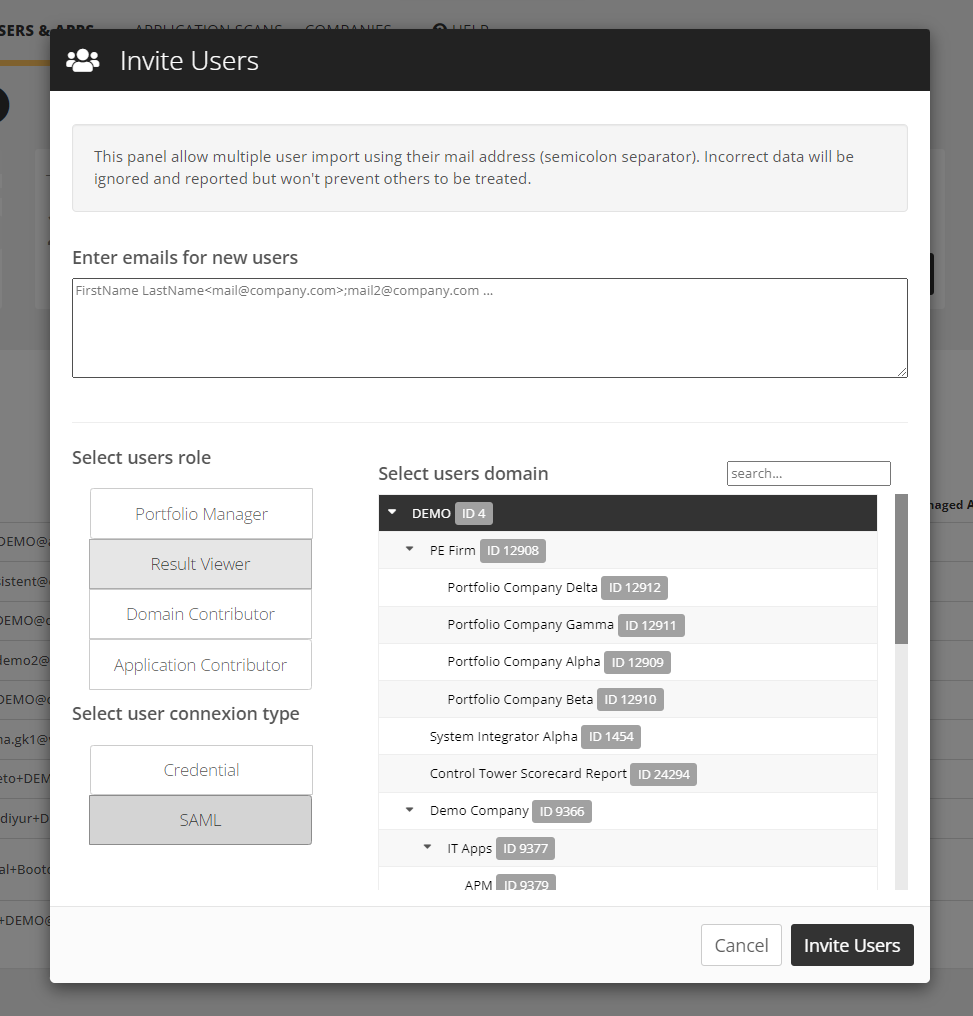
The invited user will receive an email with a link to the CAST Highlight login screen. Once the email address is provided, the user is automatically redirected to the SSO login page. At the first login, the user accepts the CAST Highlight Terms & Conditions once.
Users created automatically (Populate = True)
For the first login, the user must use the SSO Login URL (or the IdP portal tile): the CAST Highlight user account is created at that time.
Further logins
For further authentication, the user will be able to login from the login screen. Once the email address is provided, the user will be automatically redirected to the SSO login page.
Notes:
- The user won’t be able to change his password as this information is managed by your IdP
- For API and CLI, it is strongly recommended to use tokens from local accounts instead of SAML users.
Known Issues
- PingFederate: the response signature must be done, see https://support.pingidentity.com/s/article/Destination-Attribute-not-included-in-the-SAML-Response
- Azure AD / Entra ID: the Name identifier format must be set to “Email address”, otherwise CAST Highlight cannot identify the user.
- A new user gets “access denied”: Populate is False and the user was not invited. Invite the user, or set Populate to True.
- A user created automatically has no access right: this is expected when your IdP does not send hl.role, or sends an unrecognized value. A Portfolio Manager sets the role in CAST Highlight. If your IdP sends hl.role, check its value.
SAML configurations created before October 2026
In October 2026, CAST Highlight moved the handling of SAML to its new authentication service. If your company configured SAML before this date, the Service Provider information has changed. Your IdP must be updated, otherwise your users cannot log in through SSO.
CAST has already moved your SAML configuration: nothing needs to be uploaded again in CAST Highlight. Ask your IT team to:
- Download the new SP metadata from COMPANIES > SAML Management (with a credential account) and import it in your IdP. It contains all the new values, including the new SP certificate.
- Or, if your IdP cannot import the SP metadata file, update these values manually:
- ACS URL:
https://{server}/saml/SSO/alias/<company123>is replaced by the new ACS URL shown on the SAML Management page. - Entity ID / Audience: replaced by the new Audience URI (SP Entity ID).
- SP certificate: replaced by the new one (SP Certificate button).
- ACS URL:
- Check the Required information (NameID format, signed assertions) and, if you use automatic creation, that hl.role contains exactly one of the four role values.
The previous login URL https://{server}/saml/login/alias/<company123> still works: it redirects to the new SSO Login URL, so existing bookmarks and IdP portal tiles do not need to be changed. Users must log in again once after the switch.
What changed for you:
- The former “BASIC” mode corresponds to Populate = False, the former “FULL” mode to Populate = True.
- The hl.subdomain attribute is no longer used.
- Role extraction from a group name (regular expression) is no longer supported: hl.role must contain the exact role value.
- SAML attributes no longer overwrite the user data at each login: they are used when the user is created.
- The SP certificate is now managed by the authentication service: the SP certificate transition procedure no longer applies.